Refresh and schedule
A saved report gets new figures each time it refreshes. You can refresh it yourself, or let the add-on do it on a schedule.
Refresh one report
- Go to the Reports tab.
- Select Run (the play button) on the report.
Each report shows when it last ran, with a tick when it worked or a warning mark when it did not. Point at the warning mark to read why.
Refresh every report
On the Reports tab, select Refresh all. Every report in the list runs in order.
Run on a schedule
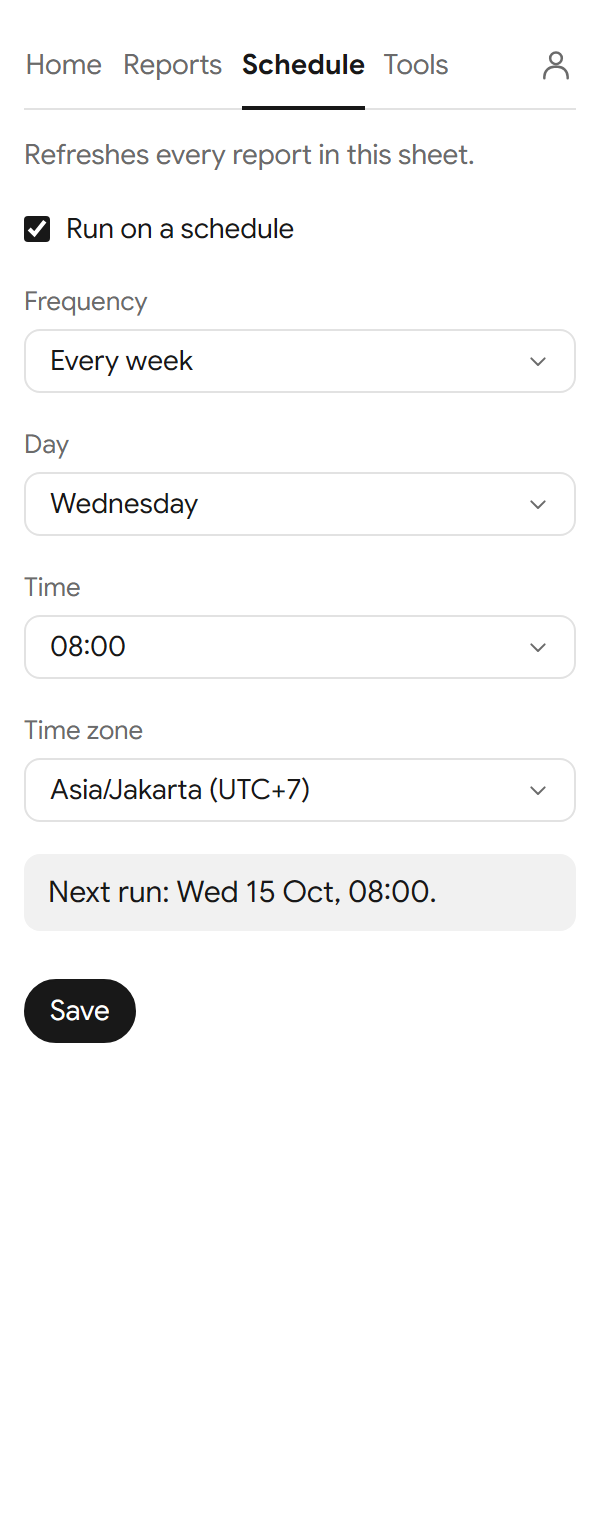
- Go to the Schedule tab.
- Tick Run on a schedule.
- Under Frequency, choose how often, from Every hour to Every month.
- For a schedule every week, every 2 weeks or every month, choose the Day.
- For a daily or longer schedule, choose the Time and the Time zone. The time zone starts on your own.
- Select Save.
The tab then shows when the next run is. The schedule refreshes every report you saved in this spreadsheet, in your time zone.
Turn the schedule off
On the Schedule tab, untick Run on a schedule and select Save. The tab says "Schedule off."
When a scheduled run fails
The report shows a warning mark on the Reports tab. After three failed runs in a row, Dataden shows "Schedule failing" with the report's name in your notifications on the Dataden website. See Troubleshooting.