Build a report
A report is a choice of accounts, fields and dates that the add-on writes into your sheet. You can save it and refresh it later.
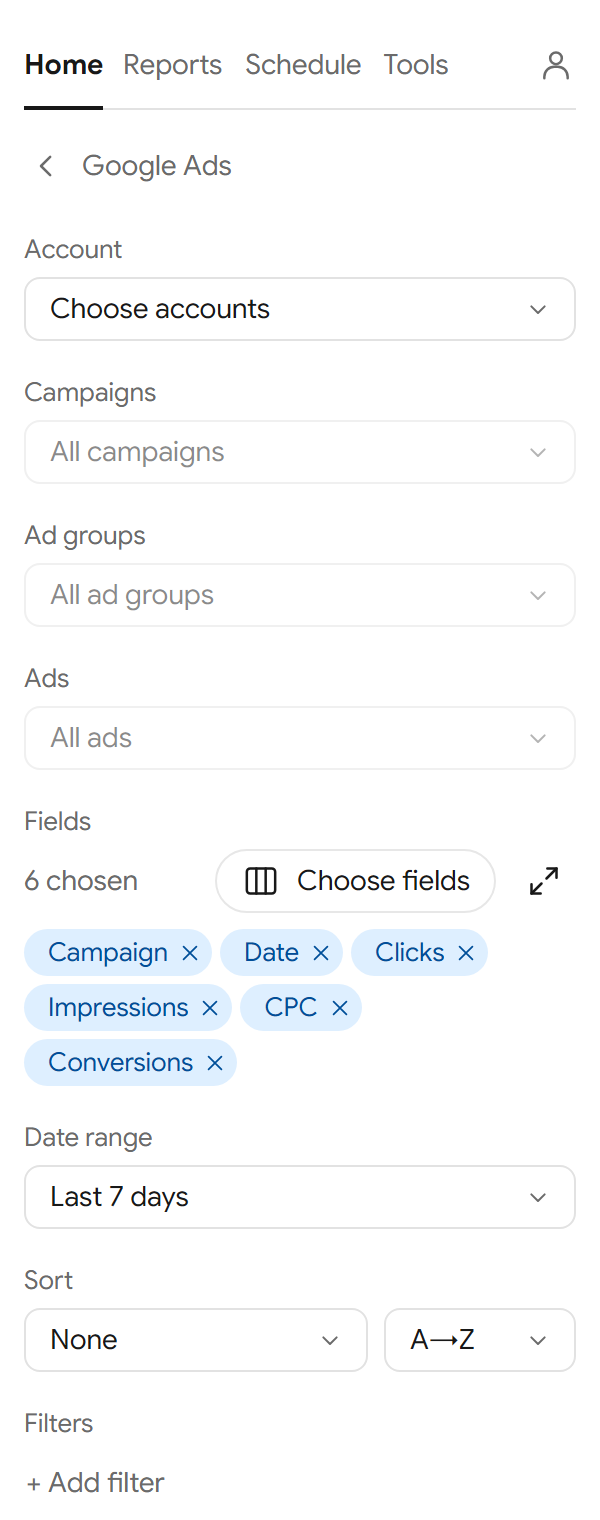
Build and save a report
- On Home, choose a platform.
- Under Account, select Choose accounts and tick up to 50 accounts. Search by name or ID.
- To narrow the report, tick items under Campaigns, Ad groups (Ad sets on Meta) or Ads. Leave them empty to include all.
- Under Fields, choose the fields you want as columns.
- Pick a Date range, such as Last 7 days, or Custom for your own From and To dates.
- Add a sort or filters if you need them.
- Open Options to choose where the data goes and to name the report.
- Select Save & get data.
The add-on writes the figures and shows how many rows it wrote and in which tab. The report appears on the Reports tab.
Get data once without saving
Open Options and untick Save report. The button changes to Get data. The figures are written, but nothing is saved, so the report does not appear on Reports and does not refresh.
Edit a saved report
- Go to the Reports tab.
- Select Edit (the pencil button) on the report.
- Change what you need and select Save & get data.
Accounts you can choose
Owners and admins see every account of the workspace's connections, in two groups: Added and Not added yet. Members see the accounts they are given.